Different headers
“Supplier SKU” becomes “Item Code”. “Quantity” becomes “Qty Ordered”.
Your purchase order is already in Shopify. Supplier Bridge reshapes it into the column names, order, fixed values and delimiter your supplier expects — from a template you save once.
Try it on up to 5 purchase orders. Free exports are 5 in total, not 5 every month.
Real Supplier Bridge preview
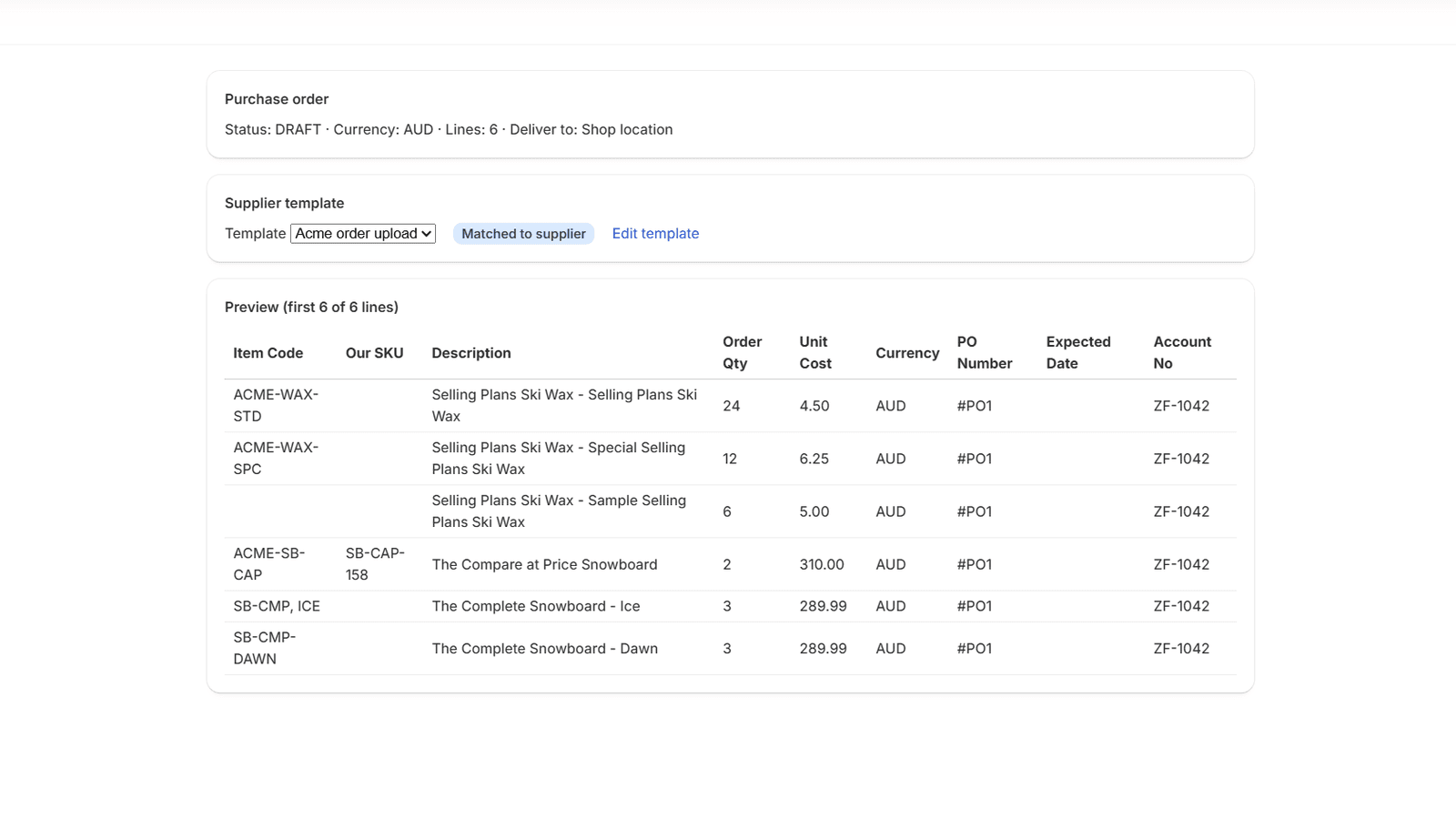
The supplier-shaped file before download
The repetitive bit
The purchase order is finished. Then the formatting work starts: rename headers, rearrange columns, add account codes and do it again for the next supplier.
“Supplier SKU” becomes “Item Code”. “Quantity” becomes “Qty Ordered”.
One supplier wants SKU first. Another wants description, account code and cost before quantity.
Account numbers, delivery codes or other values have to appear on every row.
The format rarely changes, but the spreadsheet gets rebuilt order after order.
One PO. Different supplier formats.
Supplier Bridge takes fields from the purchase order and reshapes them into the saved format for that supplier.
Shopify purchase order
| SKU | Product | Qty | Cost |
|---|---|---|---|
| BK-401 | Canvas Backpack | 24 | $31.50 |
Supplier A · comma CSV
| Item Code | Description | Qty Ordered | Unit Cost | Account |
|---|---|---|---|---|
| BK-401 | Canvas Backpack | 24 | 31.50 | ZF-1042 |
Supplier B · semicolon CSV
| Account | Order Qty | Supplier SKU | Product |
|---|---|---|---|
| AUS-88 | 24 | BK-401 | Canvas Backpack |
Illustrative fictional data. Your output follows the template you configure.
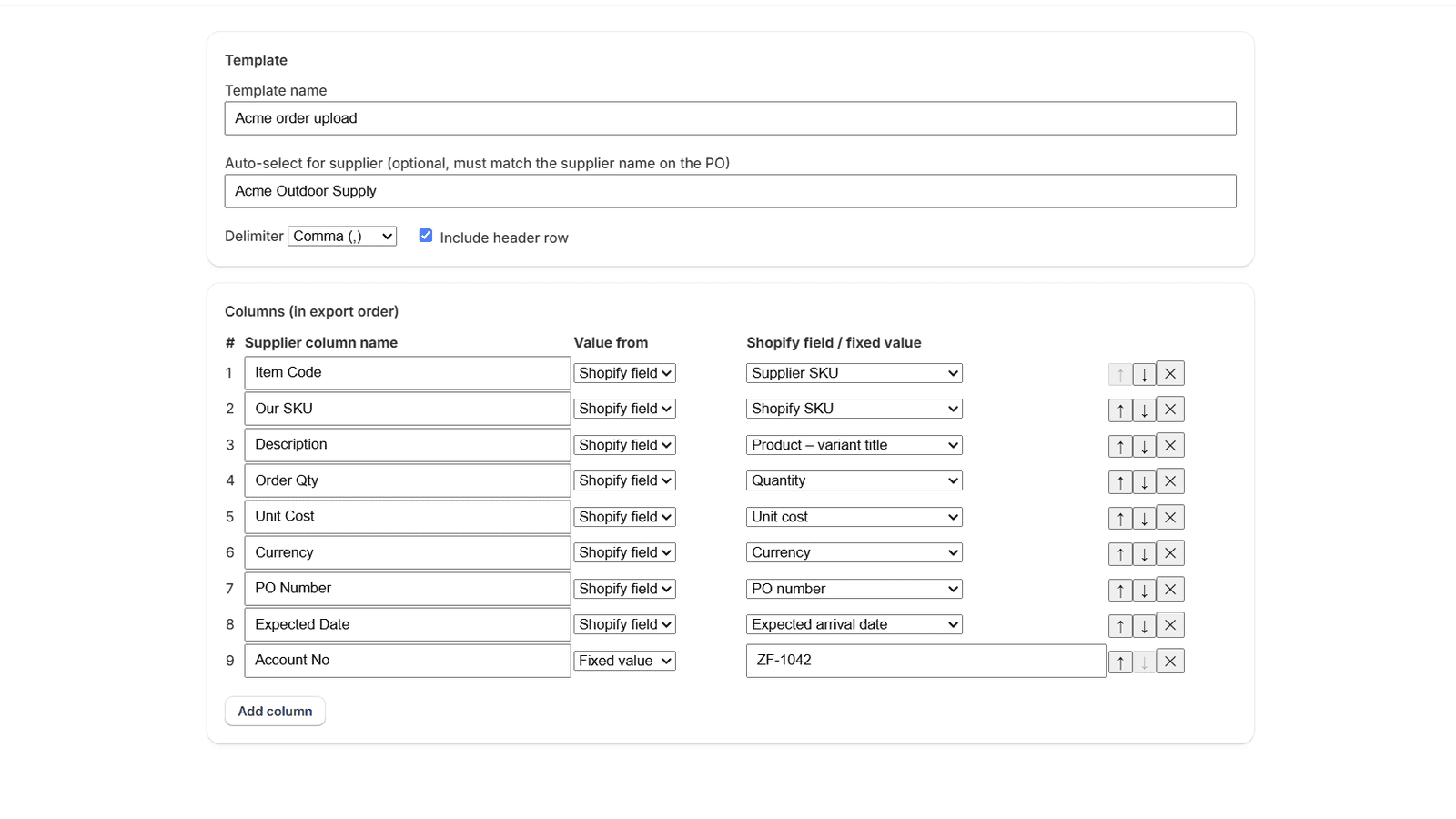
Name and order the columns, map Shopify purchase-order fields, add fixed values and choose the delimiter.
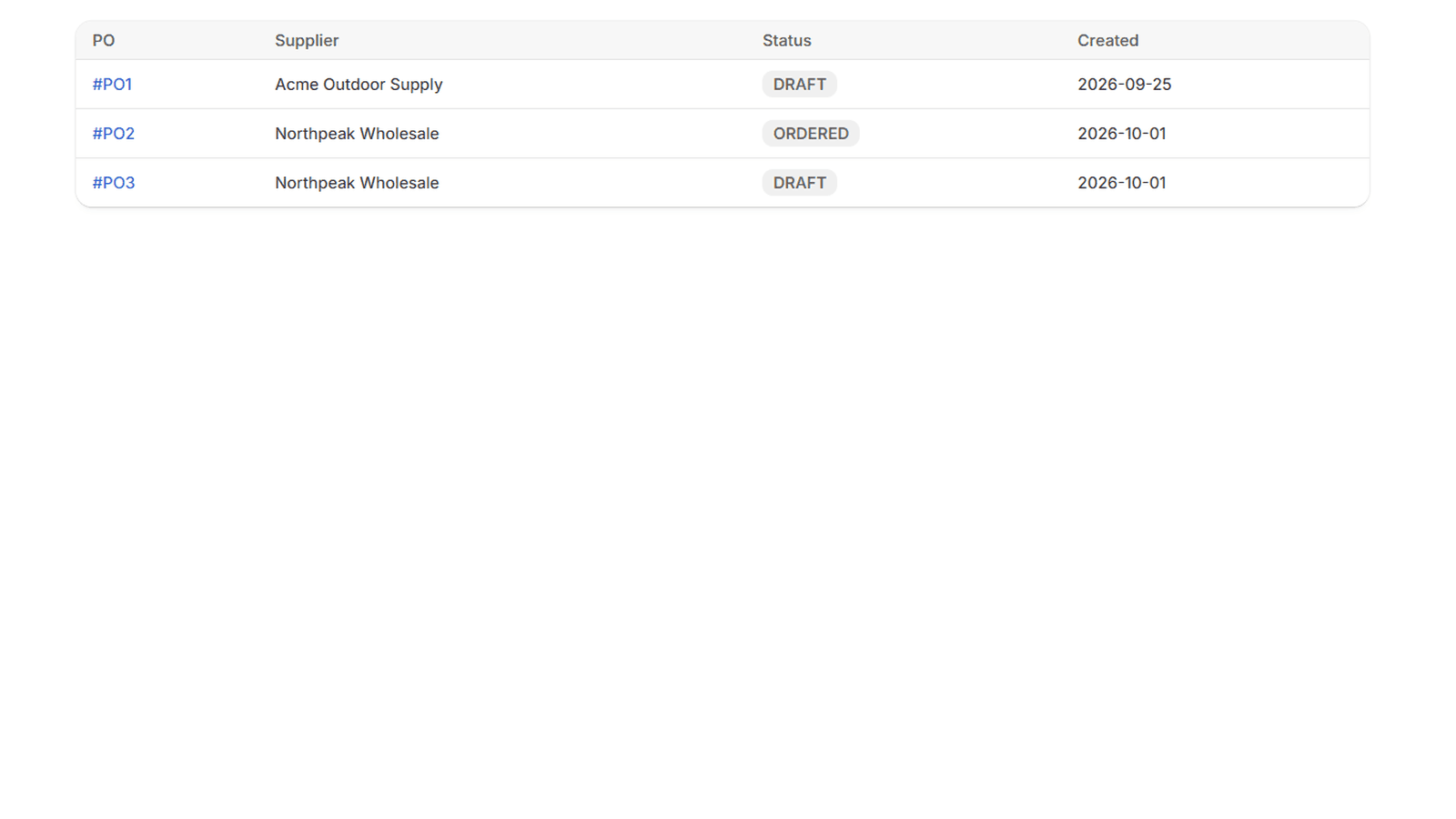
Choose a purchase order you've already created in Shopify. Supplier Bridge can select the saved template from its supplier.
Check the supplier-shaped preview, then download the CSV and send or upload it through the supplier's normal process.
See the real app
These are real Supplier Bridge screens on a Shopify development store. The suppliers, products and purchase orders are fictional.
26-second overview
The presenter is AI-generated. Product screens use fictional test data. For product truth, the real app screenshots above are the reference.
Built around the supplier's specification
Save the structure once instead of rebuilding it for every purchase order.
Use the supplier's headers and column order, mapped to fields from the Shopify purchase order.
Add columns such as account numbers or delivery codes that stay the same on every row.
Choose comma, semicolon, tab or pipe, with the header row on or off.
See the output before download so you can compare it with the supplier's current specification.
An honest fit check
Supplier Bridge is not a replacement for purchase-order reporting. It is for the last-mile formatting a supplier requires.
Shopify's native purchase-order reports may already be enough for analysing and exporting purchasing data.
Supplier Bridge is for the individual PO that has to leave Shopify in that supplier's own column structure.
Why zFinia built it
We built Supplier Bridge after seeing the same mundane operational problem surface repeatedly: the purchase order already exists, but suppliers still want the data rearranged into different file layouts. The app focuses on that one job.
Paul · zFinia
Simple pricing
Free
US$0
See whether it works with your suppliers before deciding.
Supplier Bridge
US$19/ 30 days
For stores that want to keep using saved supplier formats.
Charges are billed by Shopify in USD. The free allowance is 5 successful exports per store in total, not a monthly refill.
Before you install
No feature fog. These are the practical limits and buying questions.
No. Shopify's native purchase-order reports are useful for reporting and analysis. Supplier Bridge is for a different job: taking one existing Shopify purchase order and formatting it as the CSV layout a particular supplier requires.
Yes. Supplier Bridge reads the purchase orders you create in Shopify admin under Products → Purchase orders with read-only access. It doesn't create or change them. Shopify has to make purchase orders available to apps on your store; if it hasn't yet, the app tells you and your templates stay saved.
Yes. Supplier templates are unlimited on both plans. Each supplier can have its own column names, column order, fixed values, delimiter and header setting.
No. Supplier Bridge outputs CSV only.
No. Supplier Bridge exports one purchase order at a time. It is not a bulk or historical purchasing-report tool.
No. You download the CSV and send or upload it through your supplier's normal process. Your supplier's own validation rules still apply, so check the preview against their specification.
The Free plan includes 5 successful CSV exports per store in total. It is a one-off allowance, not a monthly one. Supplier templates and previews are unlimited, and a failed export doesn't use one.
The Supplier Bridge plan is US$19 every 30 days for unlimited CSV exports. Billing is handled by Shopify and can be changed or cancelled from Shopify admin.
Supplier Bridge requests read-only purchase-order and inventory-related access. Purchase-order contents and the CSV files you download are not stored. See the Supplier Bridge privacy policy for the full data-handling details.
See the Supplier Bridge support page or email support@zfinia.com. If you're asking about a supplier format, a redacted example of the required columns is useful; don't send passwords or access tokens.
Bring one supplier format
Use the free allowance on up to five purchase orders. If the workflow fits, keep the supplier templates and move to unlimited exports.
Need help first? Supplier Bridge support